

StreetTeam · Live
Livestream to your socials
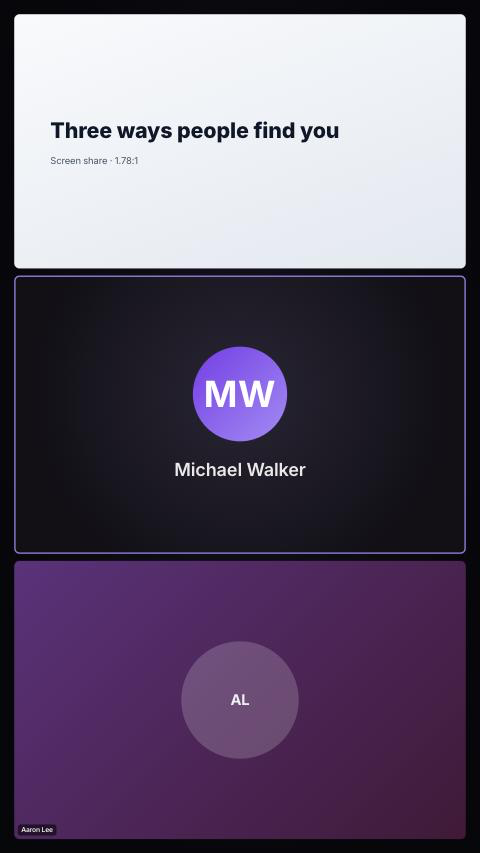
Go live once on your StreetTeam stage and stream to every platform at the same time. Vertical platforms get a full-screen 9:16 picture, and comments from every platform land in your stage chat.
In StreetTeam, start the Set up livestreaming to your socials workflow under Tasks › Workflows. Pick your platforms and you get only those steps. Short on time? Press Copy for agent on any step and paste it into your AI agent or your StreetTeam robot.
At a glance
| Platform | How it connects | Picture | Comments in your chat |
|---|---|---|---|
| YouTube | Connect once | Landscape | Automatic |
| Facebook Page | Connect once | Landscape | Automatic |
| Twitch | Connect once | Landscape | Desktop app |
| New key each show | Vertical | Desktop app | |
| X (Twitter) | New key each show | Landscape | Desktop app |
| TikTok | Key, if you have LIVE access | Vertical | Desktop app |
| Kick | Paste your key once | Landscape | Desktop app |
1. Connect once
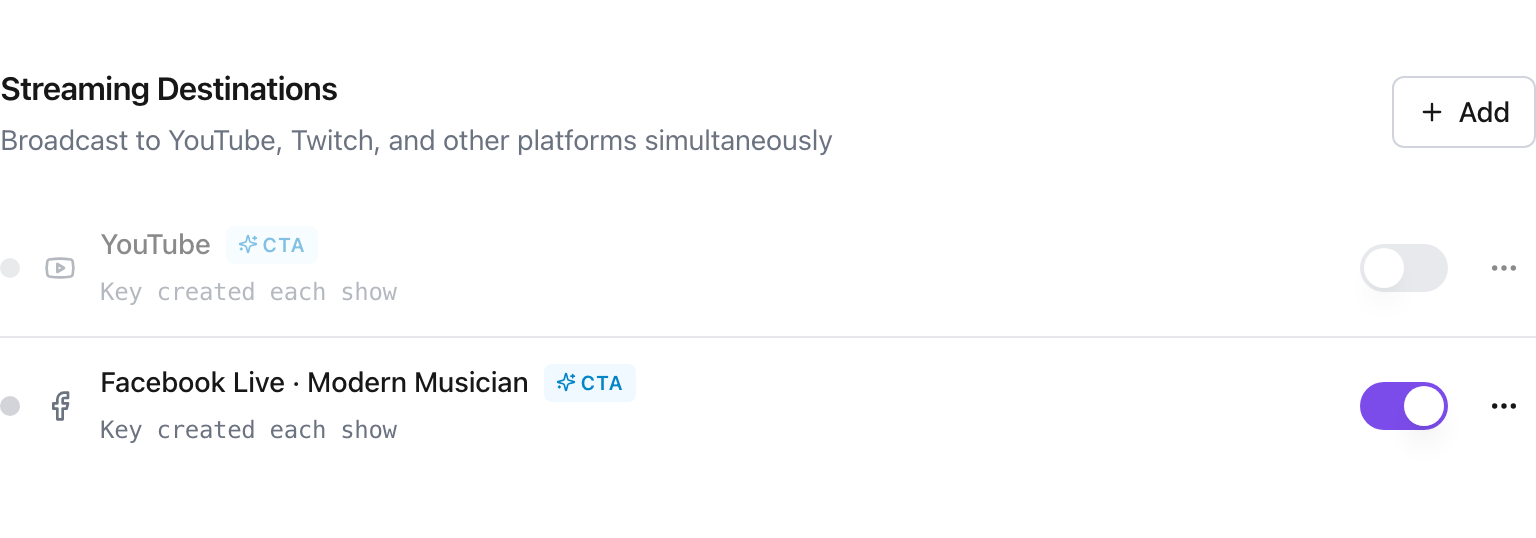
Open Settings › Integrations and press Connect for YouTube, Facebook and Twitch. After that StreetTeam creates each show's broadcast for you, so there are no stream keys to copy. Then open any live event, go to Streaming Destinations and press + Add for each platform.
YouTube
- + Add → YouTube, Landscape, save.
- Before a show press Create broadcast and choose who can watch: Unlisted for tests, Public for shows. You can change it after the show, for example to make the replay unlisted.
- Not connected? Paste the persistent key from YouTube Studio → Create → Go live → Stream. Turn on Dual stream there if you want YouTube to make a vertical Shorts version too.
- + Add → Facebook Live, Landscape, save. With Facebook connected, Create broadcast makes the live video on your Page.
- Pages can only go live Public. For a private practice run, use Create a test broadcast in Facebook's Live Producer.
- Not connected? In Live Producer: Streaming software → Advanced settings → switch on Persistent stream key and paste that key.
Instagram gives a new key for every Live, so this happens before every show.
- On instagram.com on a computer: Create (+) → Live video. Pick the Practice audience for tests.
- Copy the Stream URL and key into + Add → Instagram Live and choose Portrait 9:16.
- Keep that tab open and press Go live there once the preview appears.
X (Twitter)
- In X Producer: Sources → Create source (once), then Create broadcast for each show.
- Copy the RTMP URL and key into + Add → X (Twitter), Landscape.
- Press Go live in Producer once the preview appears. X broadcasts are public.
TikTok
TikTok gives stream keys only to accounts with LIVE access, usually 1,000+ followers and 18+. If you have it, copy the key from TikTok LIVE Studio into + Add → TikTok Live as Portrait 9:16; the key changes every broadcast. If not, skip TikTok for now and post your clips there after the show.
Twitch and Kick
- Twitch: with Twitch connected, + Add → Twitch fills in your key. Otherwise copy the Primary stream key from Creator Dashboard → Settings → Stream.
- Kick: copy the Stream URL and Key from Dashboard → Settings, then + Add → Kick.
Both keys are permanent, so you only do this once.
2. Choose which shows stream everywhere
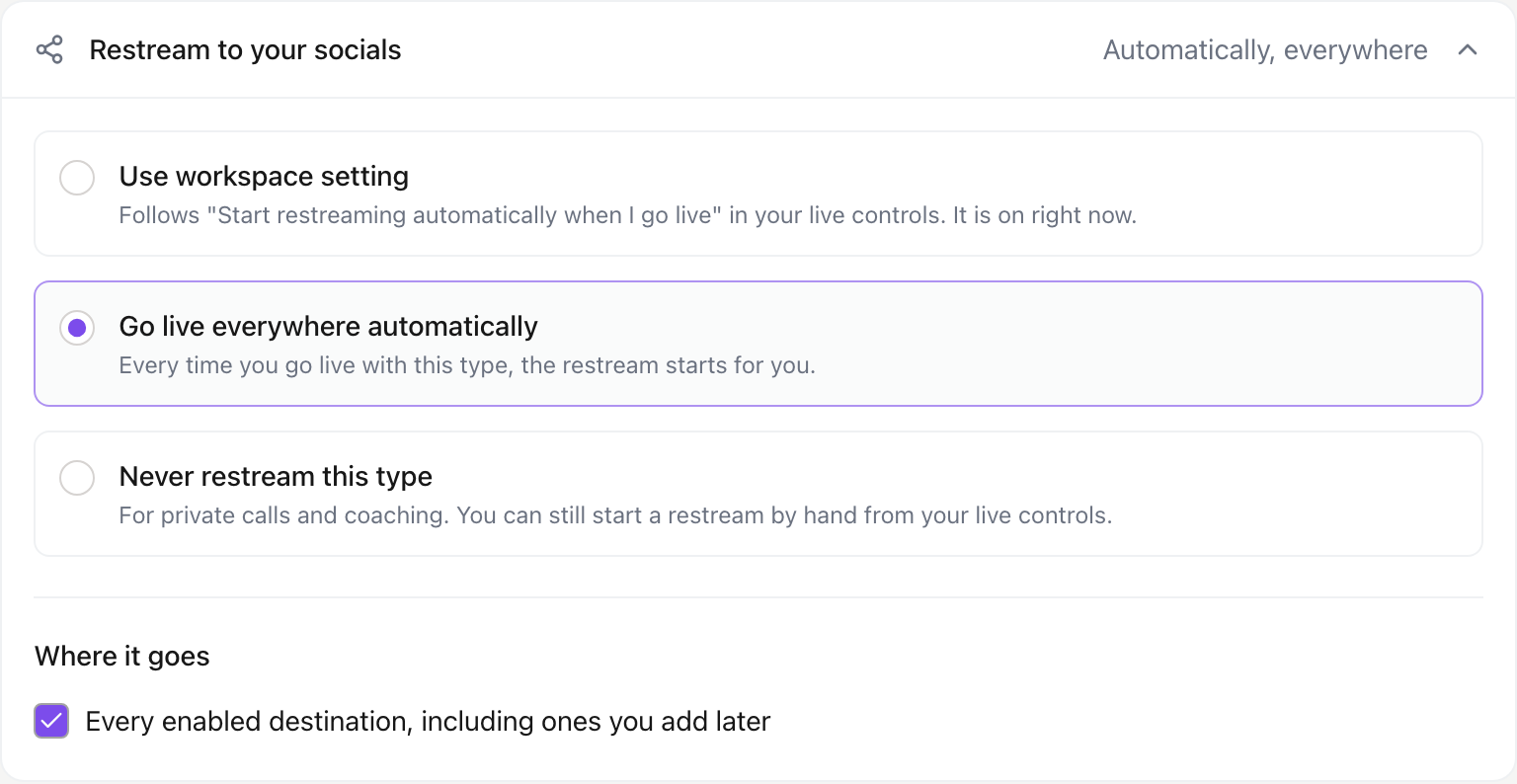
Open Calendar › Event types, pick a type and find Restream to your socials. Choose Go live everywhere automatically for public shows such as a masterclass, and Never restream this type for private calls such as coaching. You can also pick which platforms each type goes to, and its YouTube visibility.
3. Bring every platform's comments into your chat
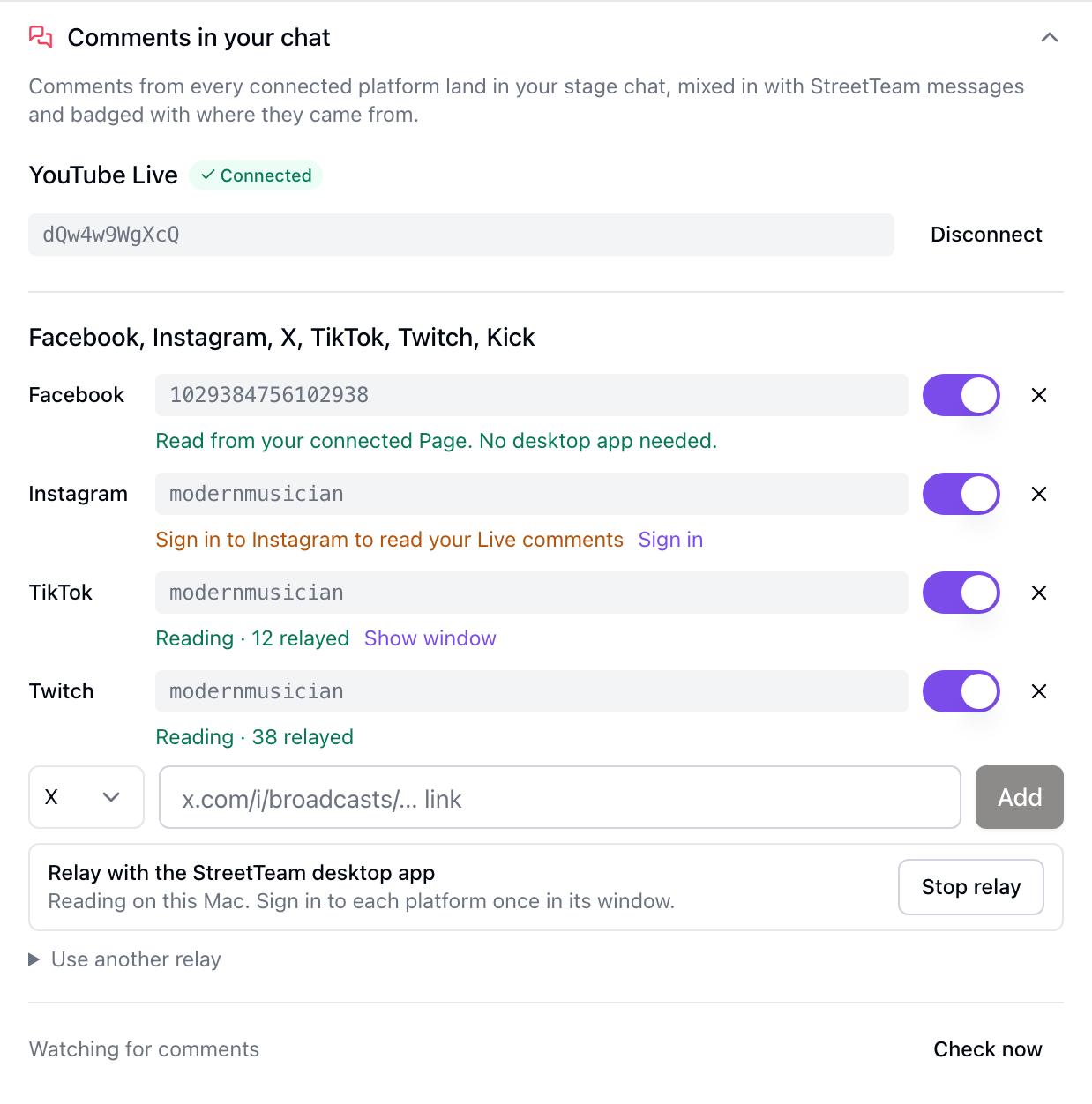
YouTube comments, and Facebook comments from a connected Page, arrive on their own. For Instagram, X, TikTok, Twitch and Kick, StreetTeam currently relays comments through the StreetTeam desktop app for Mac and Windows, which reads them for you while you're signed in:
Run your show from the StreetTeam desktop app. Don't have it yet? Get the desktop app.
- On the event, open the restream panel's Comments in your chat and add each platform's handle or live link.
- Press Sign in next to Instagram, X, TikTok or Facebook once, and sign in in the window that opens. Twitch and Kick need no sign-in.
- Go live. The relay starts by itself and stops when the show ends.
Phones and normal browsers can't read another site's chat, so there only YouTube and a connected Facebook Page come through.
4. Do a 5-minute test show
- Schedule a short test event on a test stage.
- Press Go Live (not Rehearse). The restream starts by itself if the event type goes live everywhere.
- Press Go live in Instagram and X once their previews show. YouTube, Facebook and Twitch start on their own.
- Check each platform shows you, and leave a comment on each to see it arrive in StreetTeam.
- Stop the restream, end the show, and hide or delete the test posts.